Table of Contents
Using ROMM
ROMM is where you can browse and play retro games right in your browser — no emulator setup required. This guide covers the basics.
Logging In
Go to romm.twilighttv.serveftp.com and sign in with your ROMM account.
 Screenshot: the Login screen
ROMM uses a separate account from Jellyfin — see Account & Access Help if you don't have one yet or need a password reset.
Supported Systems
TwilightTV's ROMM library covers systems mostly up to the 5th generation of consoles — think PS1, N64, Genesis, SNES, and earlier. If you're looking for something newer that isn't there, it's likely outside what the server supports right now.
Here's a quick list of supported systems:
* 3DO * Amiga * Arcade/MAME * Atari 2600 * Atari 5200 * Atari 7800 * Atari Jaguar * Atari Lynx * Commodore 64 * ColecoVision * DOOM * Neo Geo Pocket * Neo Geo Pocket Color * MS-DOS — needs a BIOS file, see note below * Nintendo 64 * Nintendo Entertainment System (NES) * Nintendo Family Computer (Famicom) * Nintendo DS * Game Boy * Game Boy Color * Game Boy Advance * PC-FX * PlayStation (PS) — needs a BIOS file, see note below * PlayStation Portable (PSP) — needs a BIOS file, see note below * Sega 32X * Sega CD * Sega Game Gear * Sega Master System * Sega Genesis/Megadrive * Sega Saturn — needs a BIOS file, see note below * Super Nintendo Entertainment System (SNES) * Super Famicom * TurboGrafx-16/PC Engine * Virtual Boy * WonderSwan * WonderSwan Color
A note on BIOS files: A few systems (PlayStation, Sega Saturn, PSP, and MS-DOS) need a small extra file called a BIOS to work at all. This is already set up for you on this server — if one of these games won't launch, let an admin know rather than trying to fix it yourself.
A note on browsers: Use a Chromium-based browser (Chrome, Edge, or Brave) for the smoothest experience — Firefox and Safari sometimes have trouble running games properly.
The Home Screen
After logging in, you'll see your library organized by platform (NES, SNES, PS1, etc.). Each platform section shows the games available for it as cover art tiles.
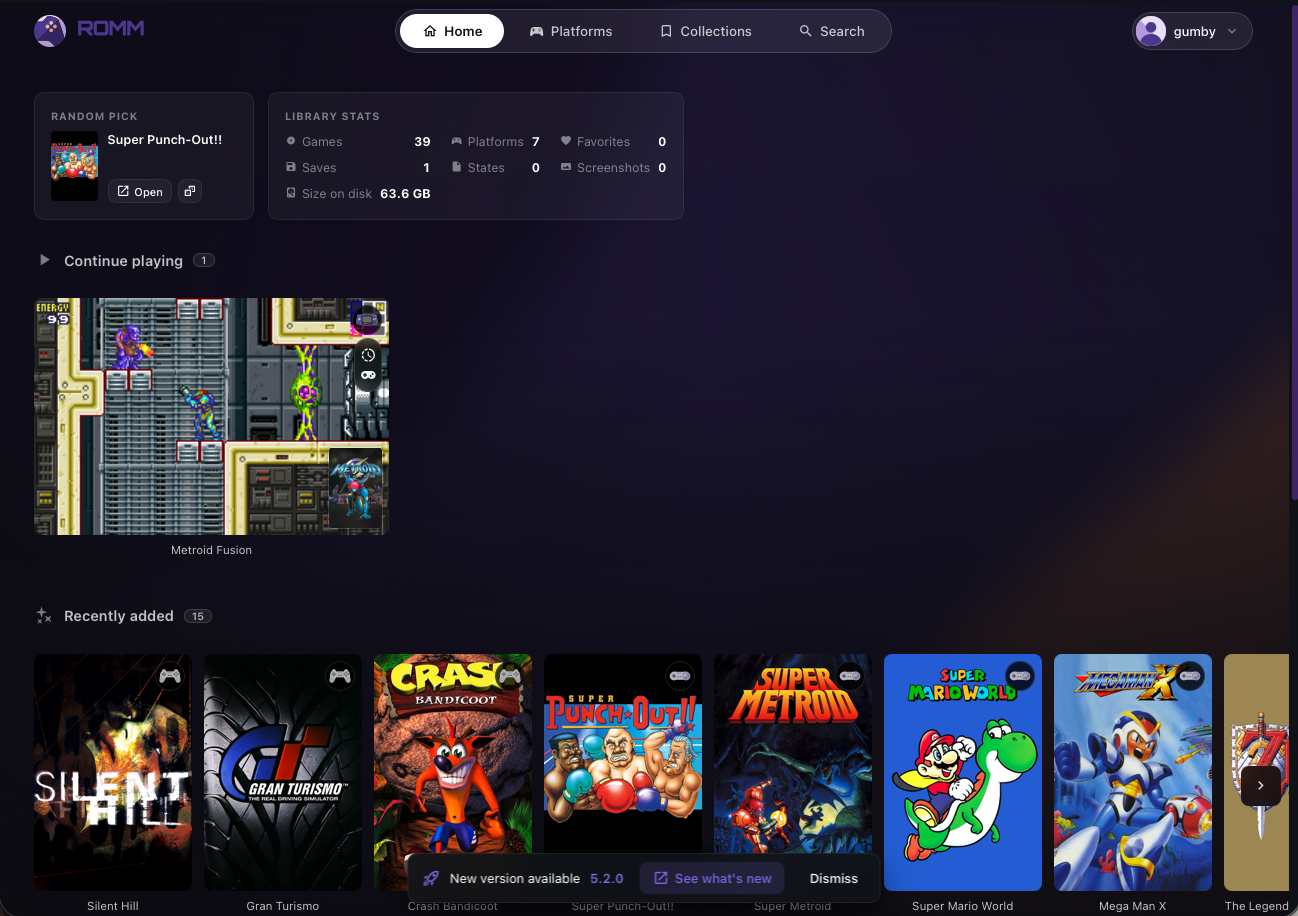 Screenshot: the Home screen showing platform sections and game tiles
Browsing & Searching
* Click a platform to see every game available for that system * Use the search bar at the top to find a game by name across all platforms * Click a game's cover art to open its detail page — this shows info like release date, genre, and description
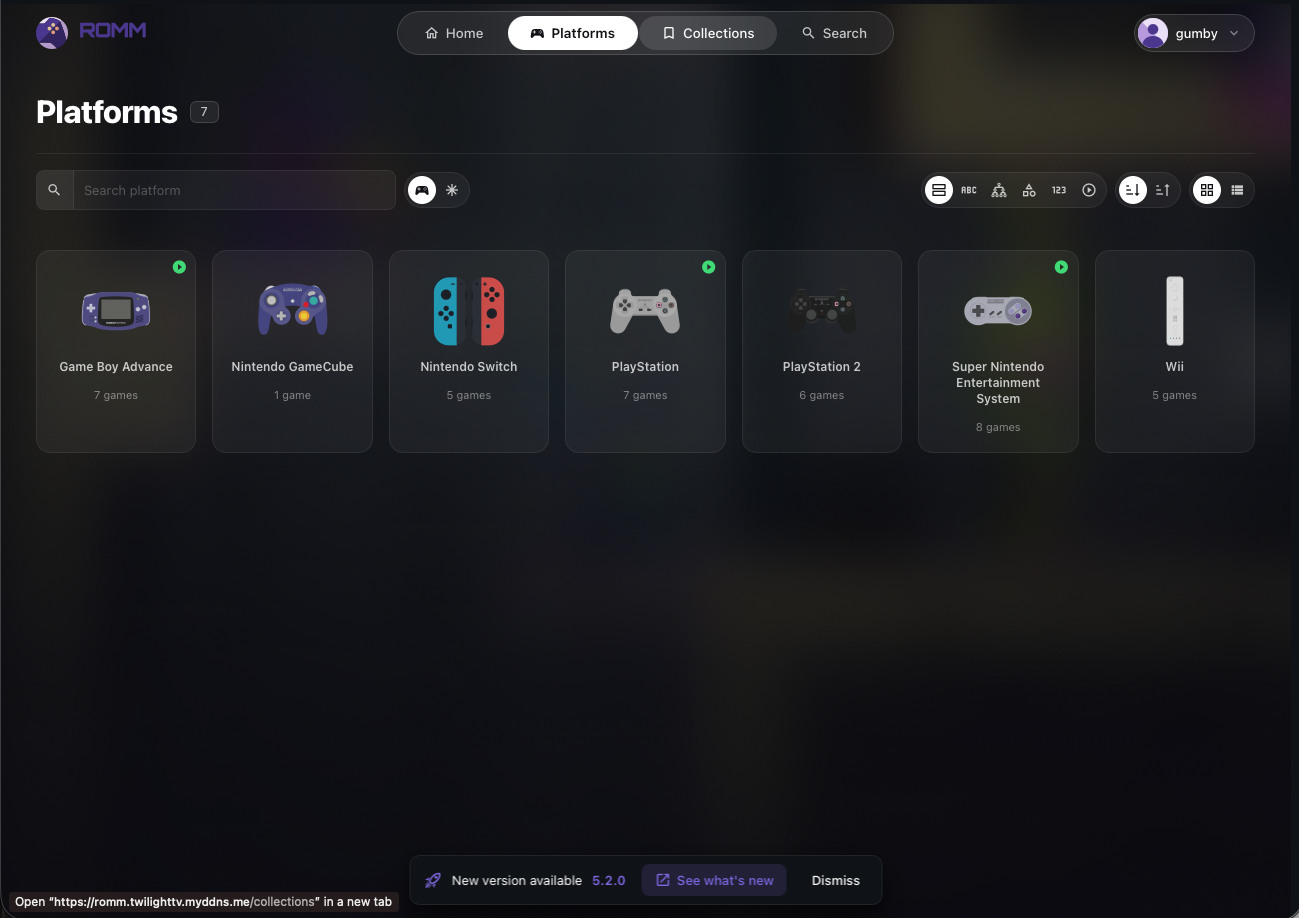 Screenshot: a platform library grid, e.g. SNES titles
Playing a Game
- If the game has a green play arrow, it is playable in the browser! - Click a game to open its detail page - Click Play - The game launches in an in-browser emulator — no downloads or extra software needed
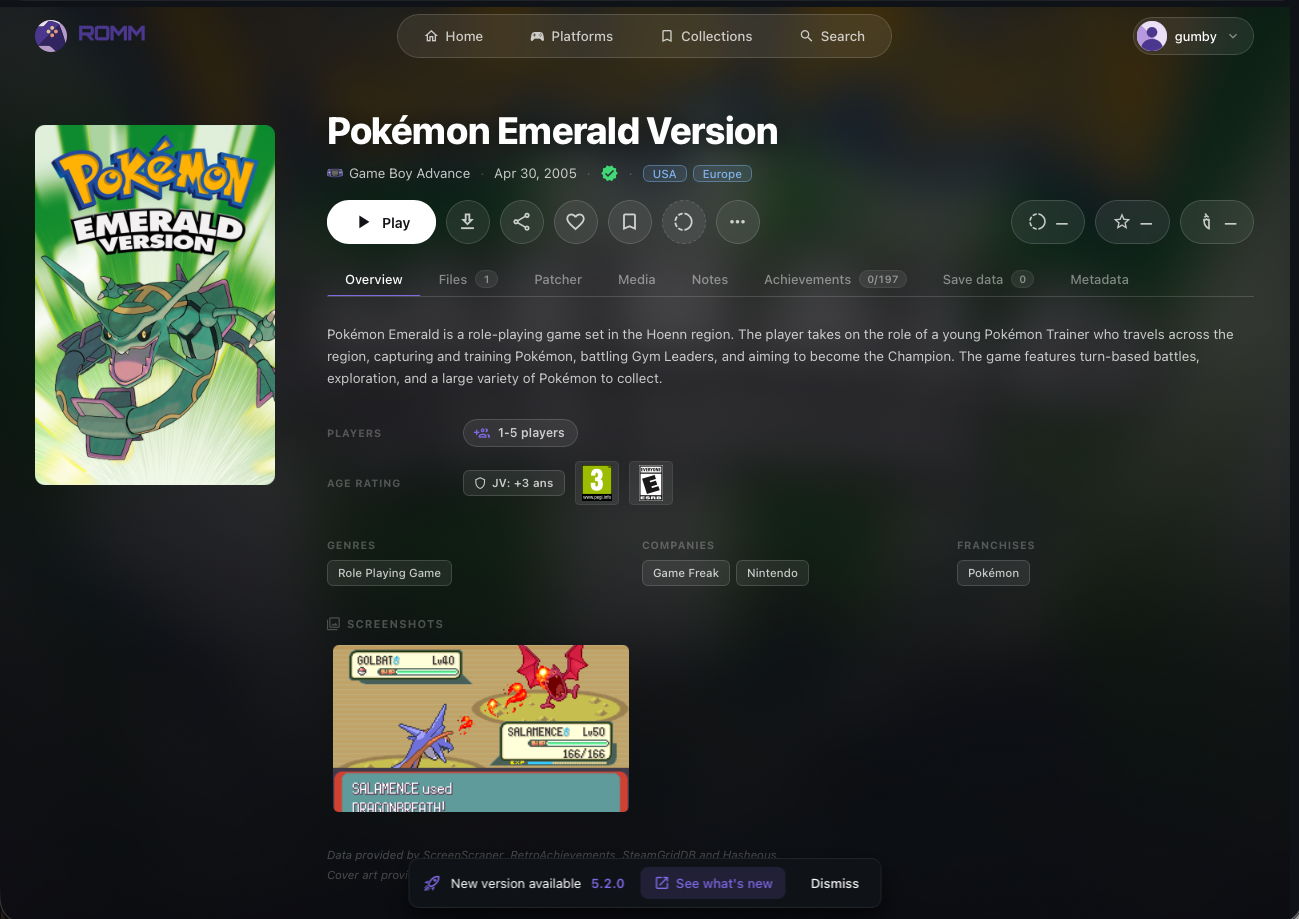 Screenshot: a game's detail page with the Play button, and/or the emulator running
If a game won't load, freezes, or looks/runs wrong, some systems let you pick a different emulator “core” from a dropdown on the Play screen. Cores are just different engines for running the same system — if the default one struggles with a particular game, switching to the other option can sometimes fix it. This is optional and most games never need it.
Controls
* Keyboard: default controls work out of the box, though they can feel clunky for action games * Controller: plug in a USB controller (or connect Bluetooth) before hitting Play — most browsers will auto-detect it once a button is pressed
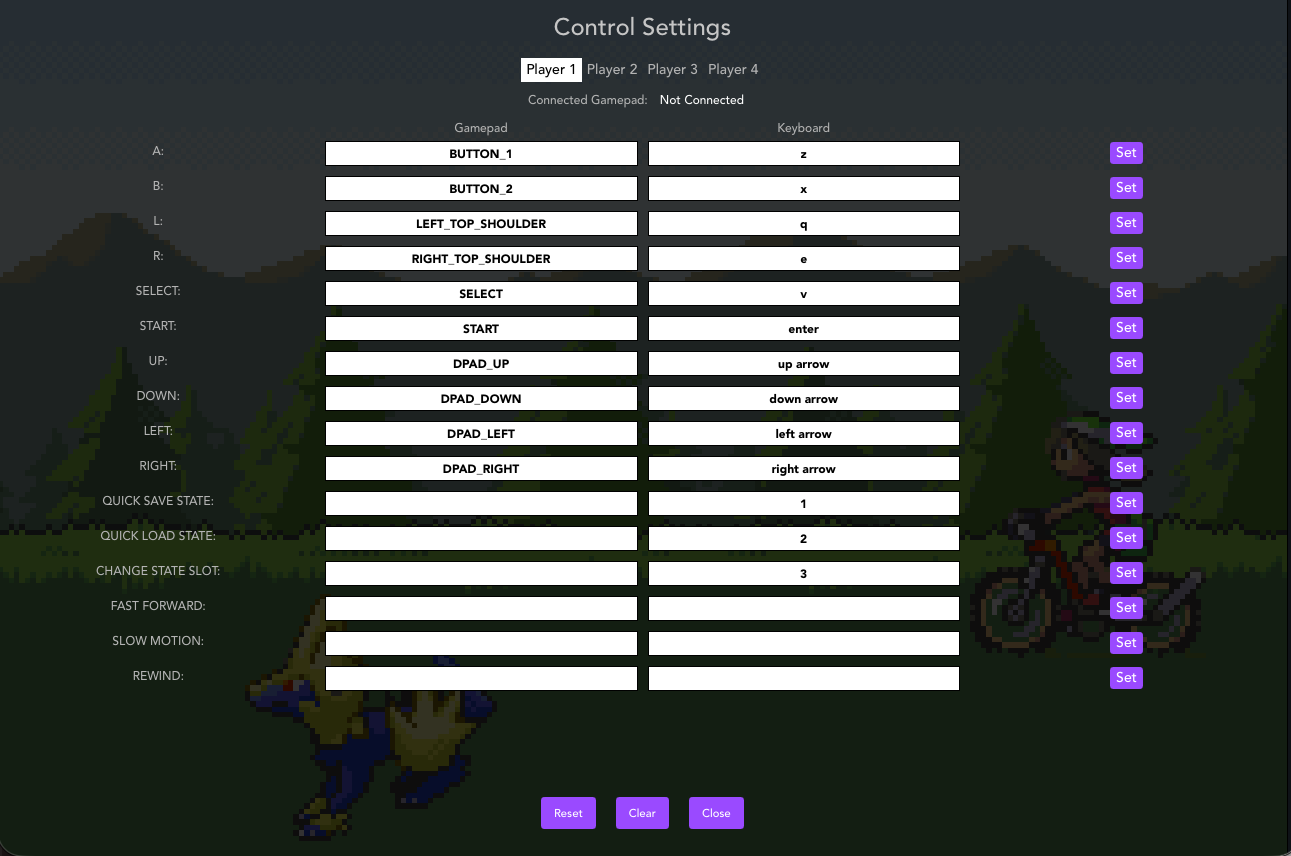
Screenshot: These are the default controls for ROMM (GBA in this case.)
Save States
The in-browser emulator supports save states, so you don't need to rely on the game's own save system:
* Use the emulator's on-screen menu (usually a small toolbar or press a hotkey) to save state (floppy icon) or load state (folder icon for manual load or the arrow icon for quick load) * Save states are tied to your account, so they'll be there next time you log in — even on a different device * Save states are per-game, so you can have different progress points saved without overwriting each other * Only you can see your uploads, including ROMs and saves — except admins, who can see everyone's ROMs (but not saves or save states)
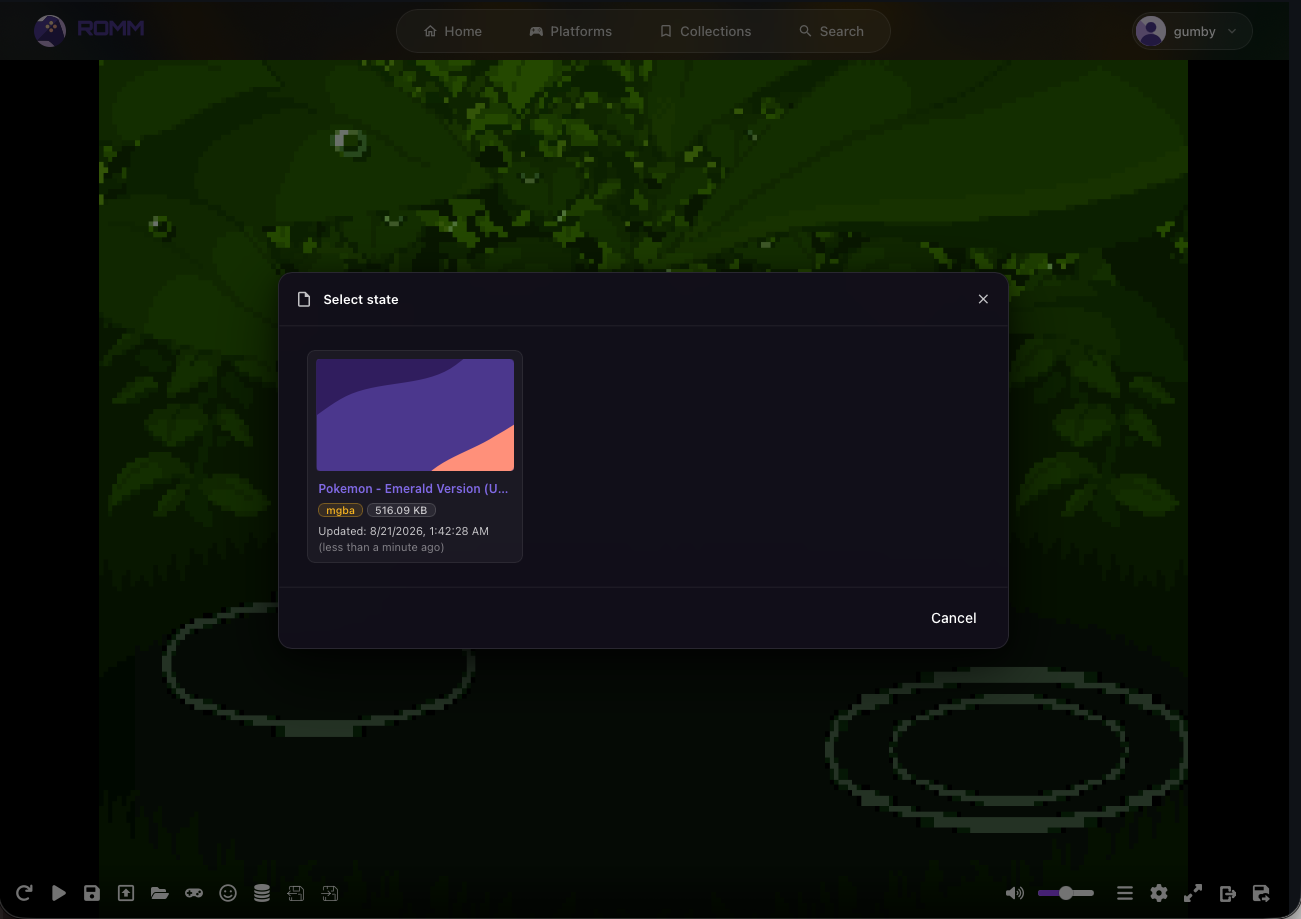 Screenshot: the emulator's save/load state menu
Downloading a Game
If you'd rather play on a real emulator or handheld instead of in-browser, most games have a Download button on their detail page, right next to Play, to grab the ROM file directly.
You'll need to provide your own emulator for offline play, but BIOS files can still be stored on ROMM for you — under a system's page (e.g. PS2), there's a BIOS tab where you can drop a BIOS file and it acts like cloud storage.
Favorites
Click the heart/star icon on a game to add it to your Favorites, making it easier to find again without digging through the full platform library.
Tips
* Struggling with input lag in-browser? Try a wired controller instead of Bluetooth, and close other tabs/apps hogging bandwidth. Worst case, you may have to download it and play locally. * Can't find a specific game? It might just not be in the library yet — ask an admin on Discord if you'd like it added, or add it yourself under your username in the top right. * Be sure to ask an admin to scan for ROMs after you add them, or they won't show up until the next automatic scan (currently 3am).
—
Still stuck? Reach out to an admin on The Twilight Zone's Discord.