Table of Contents
Nextcloud Basics
Nextcloud is your personal cloud storage on TwilightTV — for files, photos, documents, backups, and more. This guide covers logging in, uploading files, sharing, syncing, and using the mobile/desktop apps.
Logging In
Go to cloud.twilighttv.serveftp.com and sign in with your Nextcloud account.
 Screenshot: the login screen
If you don’t have an account yet or forgot your password, see Account & Access Help.
The Dashboard
After logging in, you’ll land on the Dashboard — a board with all of TwilightTV's links and apps on Nextcloud.
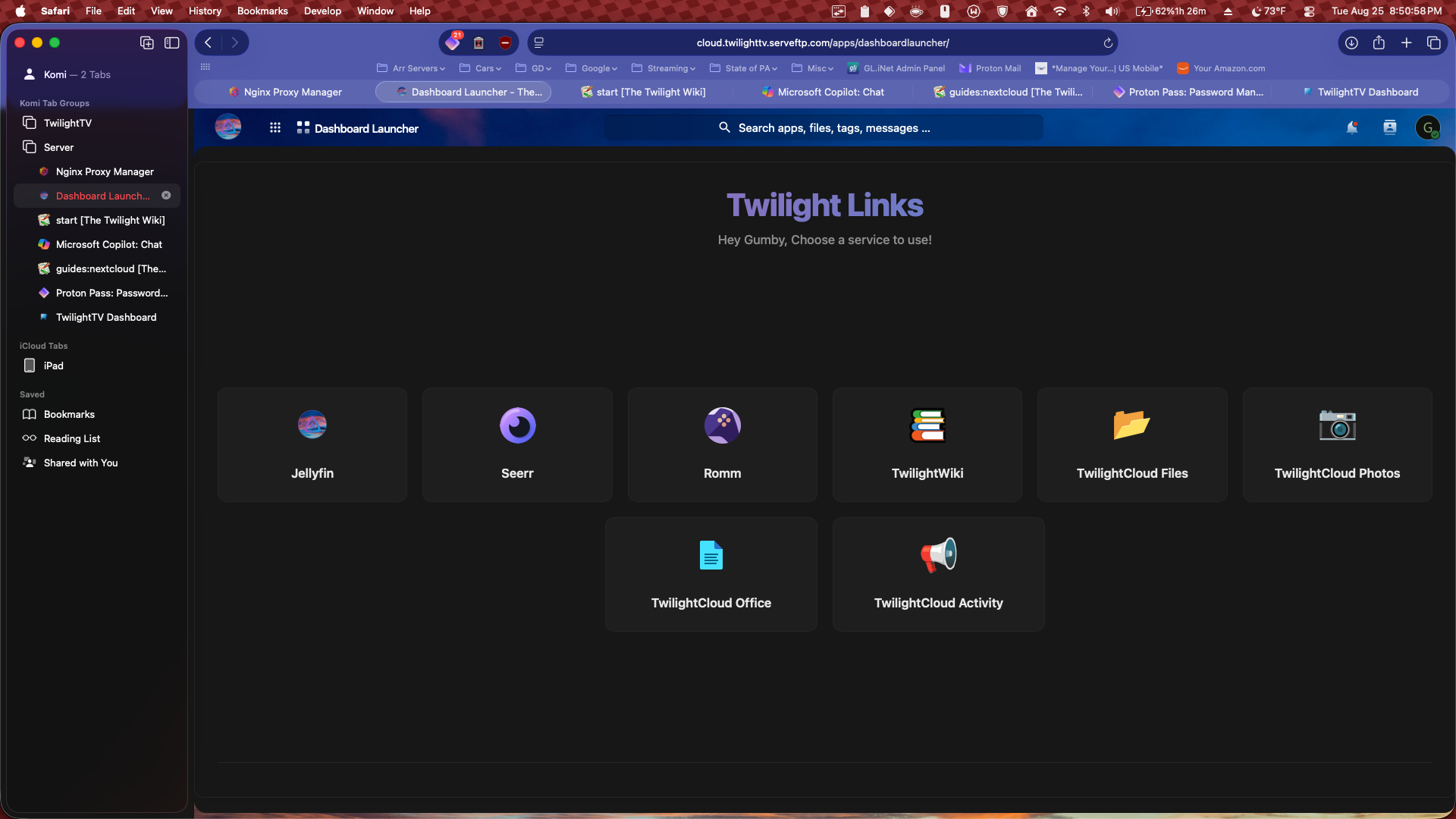 Screenshot: the dashboard with recent files and widgets
Files
The Files app is where you’ll spend most of your time. Here you can:
- Upload files or folders
- Create new folders
- Rename, move, or delete items
- Preview photos, documents, and videos
- Share files with others
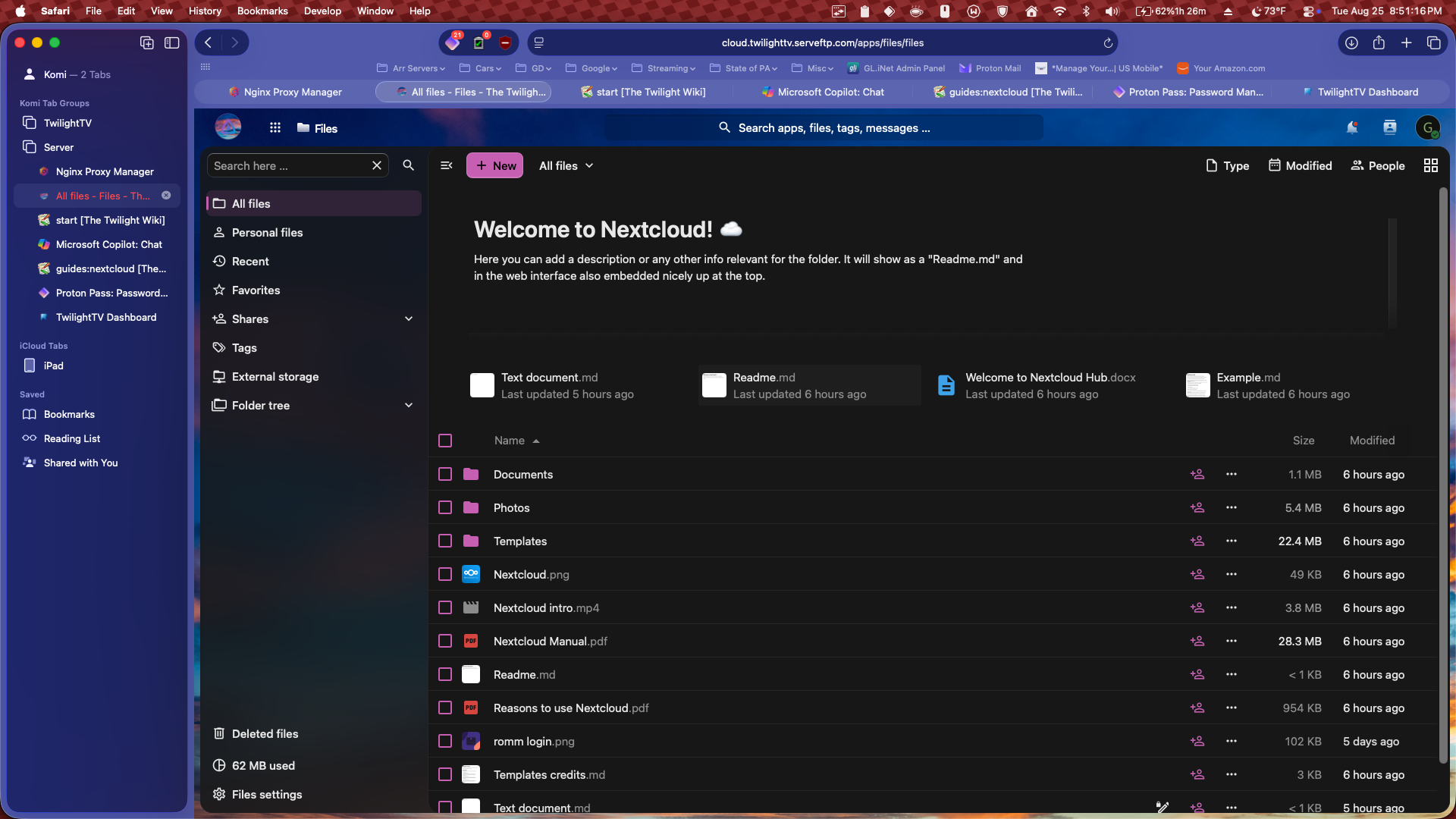 Screenshot: the Files app showing folders and files
Uploading Files
You can upload files in two ways:
- Drag & drop directly into the browser window
- Click + → Upload file or Upload folder
Uploaded files appear instantly.
Creating Folders
Click + → New folder, name it, and press Enter.
Sharing Files & Folders
Nextcloud makes sharing easy and secure.
To share something:
- Click the three dots next to a file/folder
- Click Share
- Choose one of the options:
| Share Type | What it does |
|---|---|
| User/Group Share | Share with another TwilightTV user (requires their username) |
| Public Link | Creates a shareable link; optional password & expiration date |
| Upload-only Drop | Lets others upload files to a folder without seeing its contents |
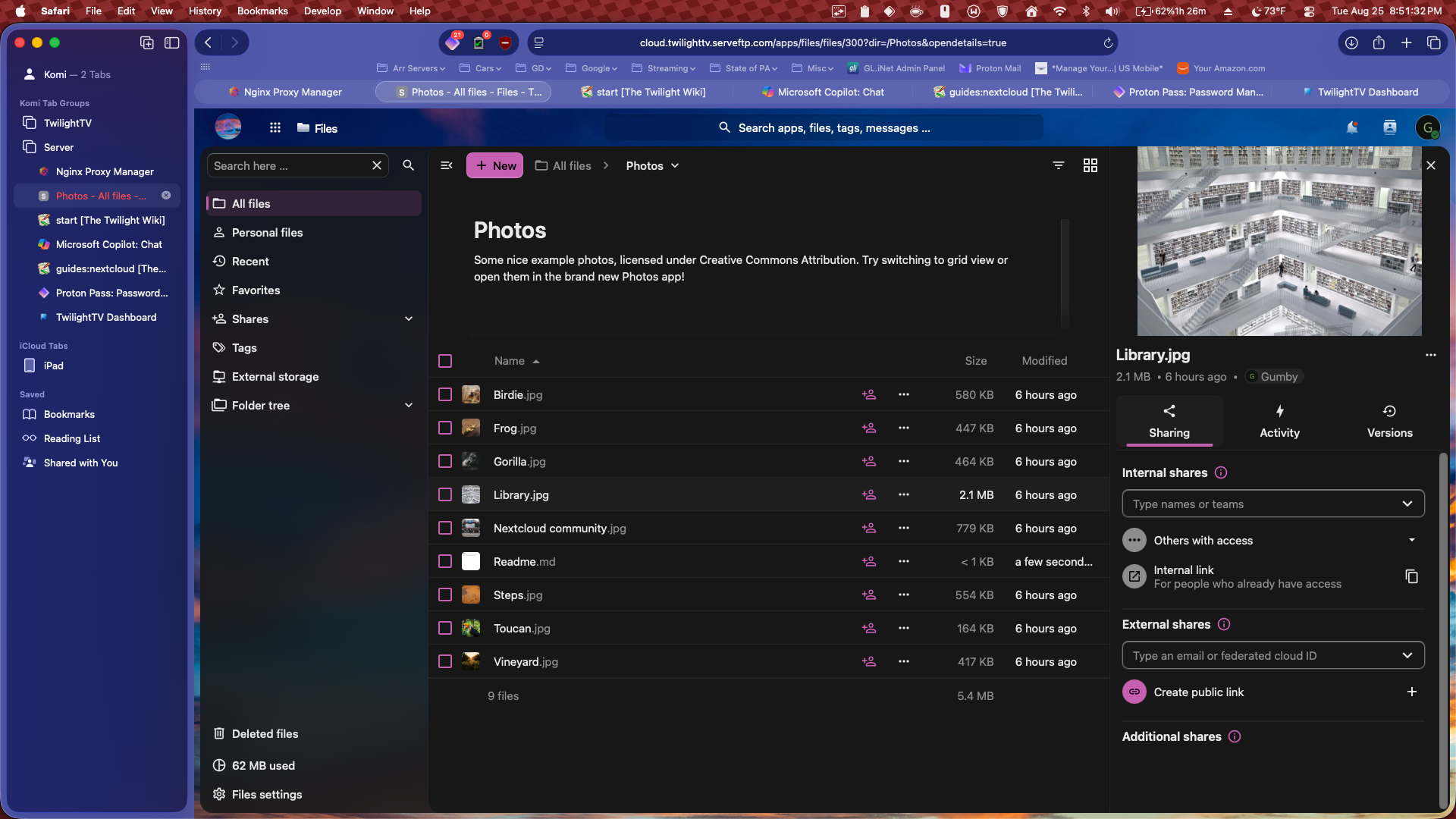 Screenshot: the sharing sidebar with link options
Viewing Photos
The Photos app automatically organizes your images by date and folder.
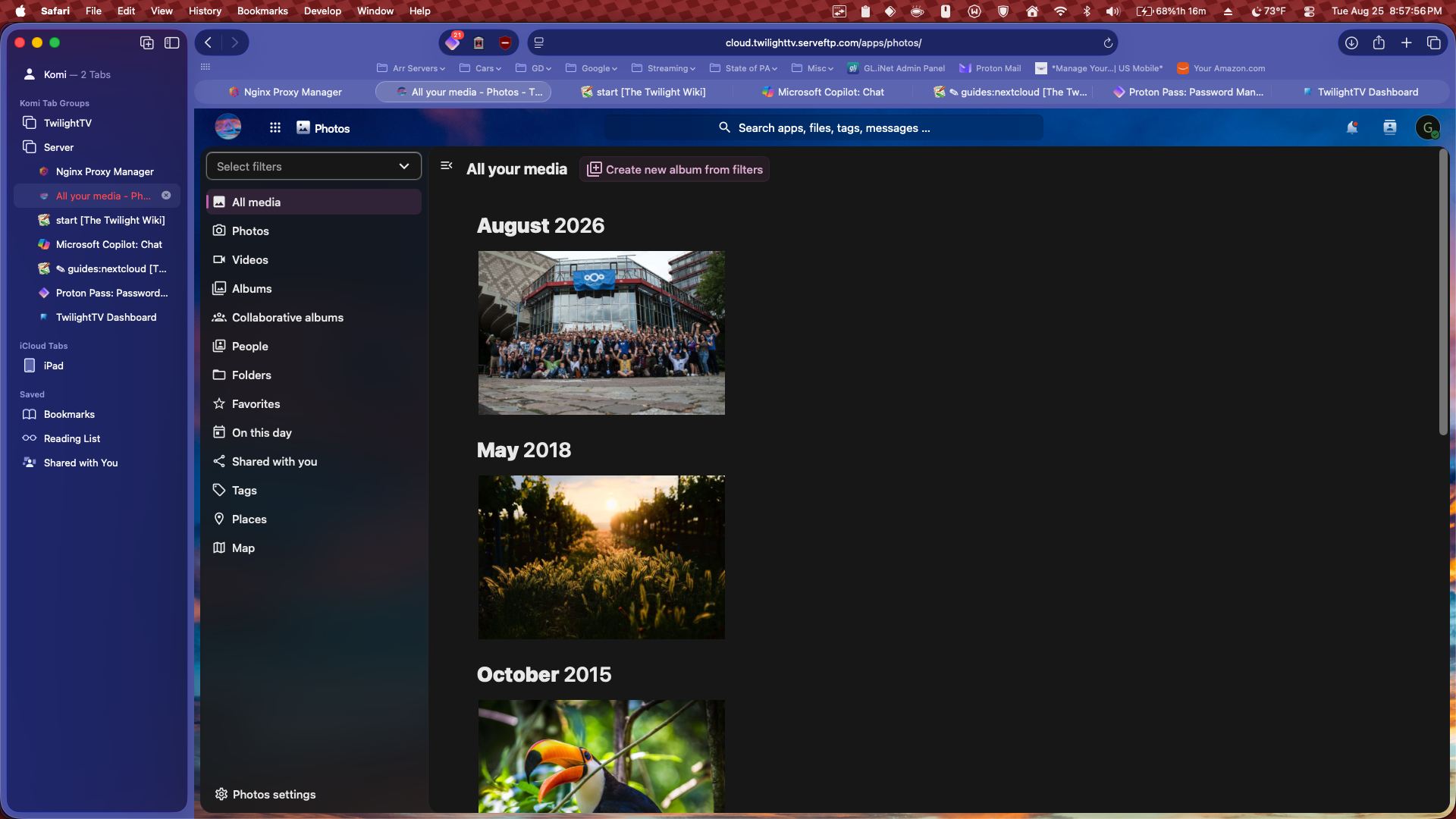 Screenshot: the Photos app grid
Notes
The Notes app lets you create simple text notes synced across all devices.
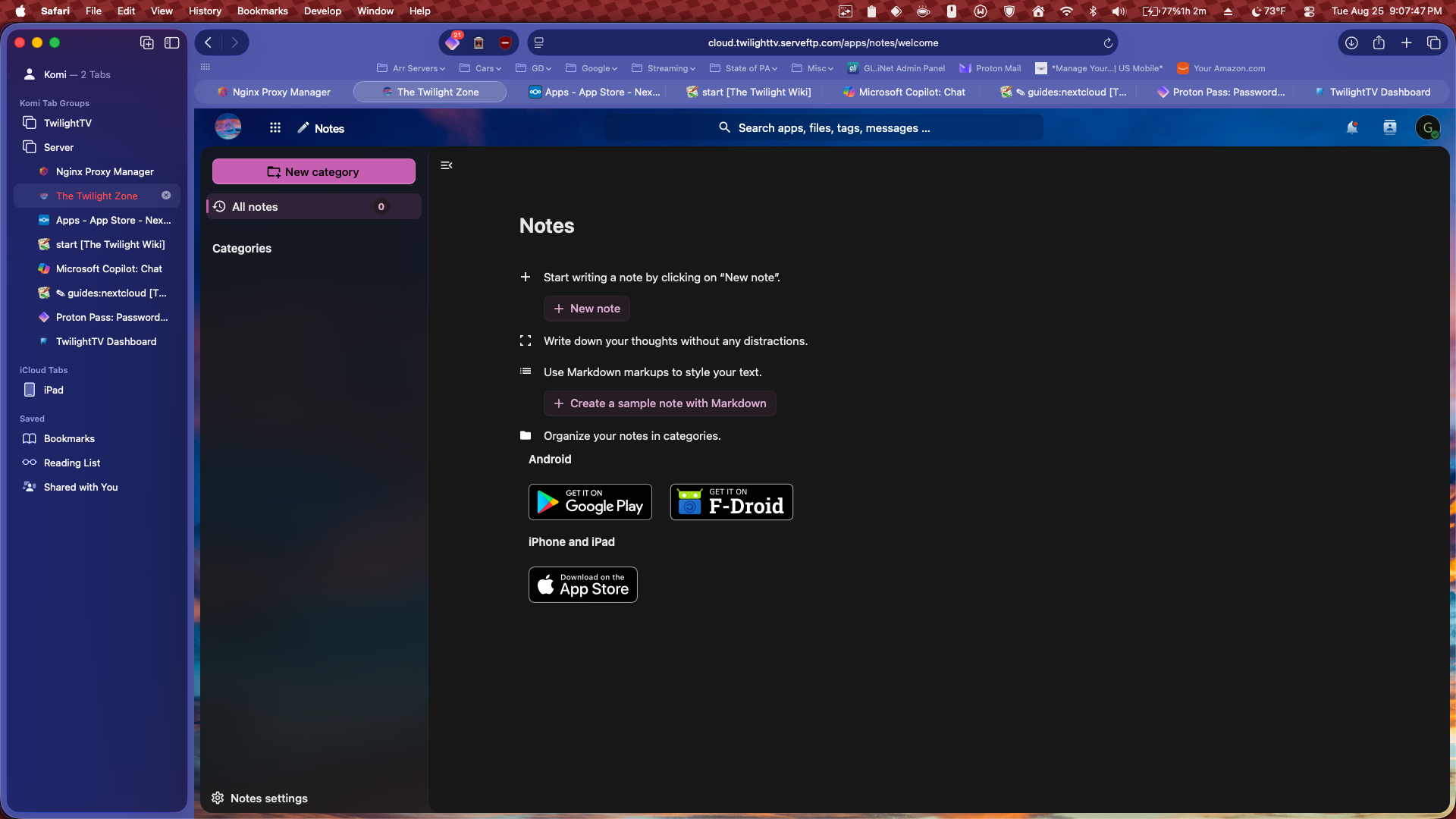 Screenshot: the Notes app with a few example notes
Calendar & Contacts
If enabled for your account, you can use:
Both support syncing with mobile apps via WebDAV.
Syncing to Your Computer
Nextcloud has a desktop sync app for:
- Windows
- macOS
- Linux
Download it from:
Once installed:
- Open the app
- Enter your server address:
- Log in
- Choose which folders to sync
 Screenshot: the desktop sync client setup screen
Syncing to Your Phone
Nextcloud has official apps for:
| Device | App |
|---|---|
| iPhone / iPad | App Store |
| Android | Play Store |
When setting up the app, use this server address:
 Screenshot: the mobile app file browser
Backups
You can use Nextcloud to back up:
- Photos (via mobile app auto-upload)
- Documents
- Notes
- App data (depending on device)
Enable photo auto-upload:
- Open the mobile app
- Go to Settings → Auto Upload
- Choose Camera folder
- Turn on Upload new photos automatically
Tips
- Use the Favorites star to quickly access important files.
- The Deleted Files section keeps removed items for 30 days.
- If a file won’t sync, check for special characters or extremely long filenames.
- For large uploads, the desktop app is more reliable than the browser.
Common Issues
| Problem | What to try |
|---|---|
| Can’t log in | Ask an admin to reset your password |
| Sync app says “Server not found” | Make sure you used https://cloud.twilighttv.serveftp.com |
| Upload fails | Try smaller batches or use the desktop app |
| Photos not auto-uploading | Reopen the app; some phones pause background uploads. |
Still stuck? Reach out to an admin on The Twilight Zone's Discord.